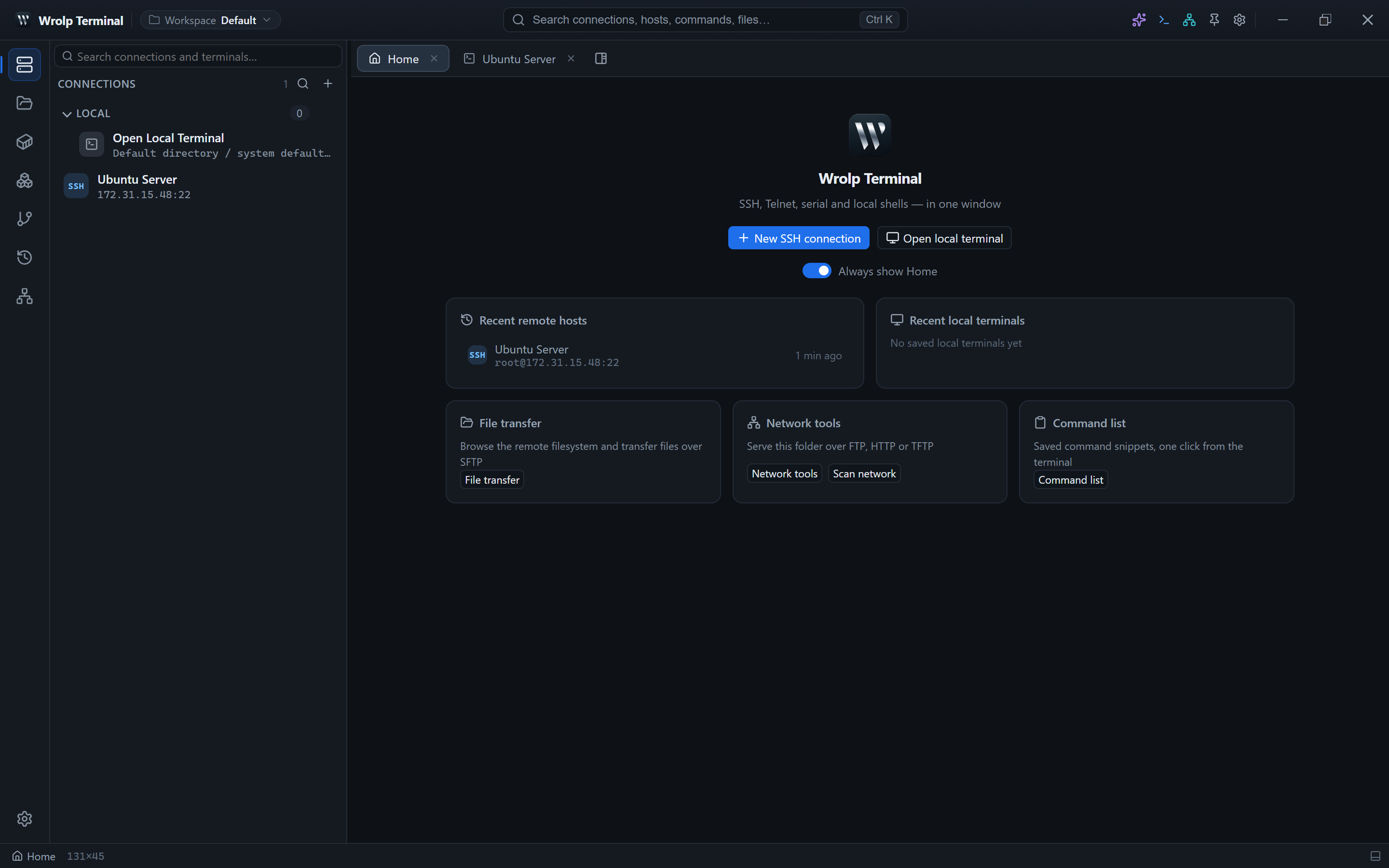
Less switching.
More doing.
Wrolp Terminal is a desktop terminal and server-operations tool built on Tauri 2 + React 19 + TypeScript. It brings “connect to servers, transfer files, edit files, read logs, manage containers, manage K8s, manage Git, ask an AI” into a single application window, replacing a workflow that otherwise bounces between an SSH client, an SFTP tool, an editor, a Docker dashboard and a Git GUI.
Its key difference from conventional SSH clients: SSH connections are implemented directly on the Rust side
with the pure-Rust async library russh (with no dependency on an external ssh command or
the OpenSSH binary), so terminal, SFTP, tunnels, Docker exec and kubectl exec all reuse the same session channel.
Local and remote file browsing share a single RemoteFs abstraction, so a local shell and remote hosts
work side by side in one UI.
At a glance
- Repository
- github.com/wrolp/wrolp
- Current version
- v0.0.12 (released 2026-11-07)
- License
- MIT (Copyright (c) 2026 Wrolp)
- Stack
- Tauri 2 / React 19 / TypeScript / Rust
- Platforms
- Windows primary target (MSI release only); runs and builds on Linux/macOS
EVERY TOOL. ONE WORKFLOW.
Everything you need, together.
Connection & terminal
Multi-tab SSH terminals rendered with xterm.js, plus Telnet, serial (COM) and local shells. SSH runs on russh, not an external OpenSSH binary.
Files & editing
SFTP browsing with pause/resume and a per-file transfer queue, Monaco editing with UTF-8/GBK detection, and hex or image previews.
Explore file features →Server operations
Docker and podman hosts, Kubernetes/Helm, and a Git panel backed by the real git CLI. The Kubernetes and Git panels choose their host from the terminal you have focused.
AI assistant
Chat and Agent modes, isolated application-level and per-pane conversations, and an insert-only “send to terminal” step so you review before running.
Explore the AI assistant →Sessions & data
Split trees with floating panes, NDJSON session recording with asciinema export, and a relocatable data directory that includes your encrypted connections.
Explore session & data features →Start in a few commands
Install the Linux system packages listed in the get-started guide if you are building on Debian/Ubuntu, then install Rust and the frontend dependencies:
curl --proto '=https' --tlsv1.2 -sSf https://sh.rustup.rs | sh
yarn
yarn tauri dev # full stack; Tauri starts the Vite dev server automaticallyUser manual
Thirteen chapters cover installation through troubleshooting: connections and terminals, files and editing, operations panels, the AI assistant, recording and data migration.
Setup & connection
1. Installation & system requirements
2. Your first connection
3. Sessions & tabs
AI & data
10. AI assistant
11. Session recording & export
12. Data location, migration & backup
Before you start
- Release packages are Windows MSI only: the bundle target in
tauri.conf.jsonis["msi"], so Linux and macOS users build from source. - Tunnels are local port forwards: a listening port on your machine relays traffic through the SSH session to a remote target.
- Session recording is off by default: once enabled, keystrokes and commands go to the local SQLite database, never to a remote host.
- The data directory is relocatable:
vault.keydecrypts connection profiles and AI keys, so keep it with any backup or migration. - Operations panels depend on remote tools: the Docker panel needs Docker or podman on the host; the Kubernetes and Git panels run
kubectl,helmandgitthrough the focused terminal's session.