Creating a connection
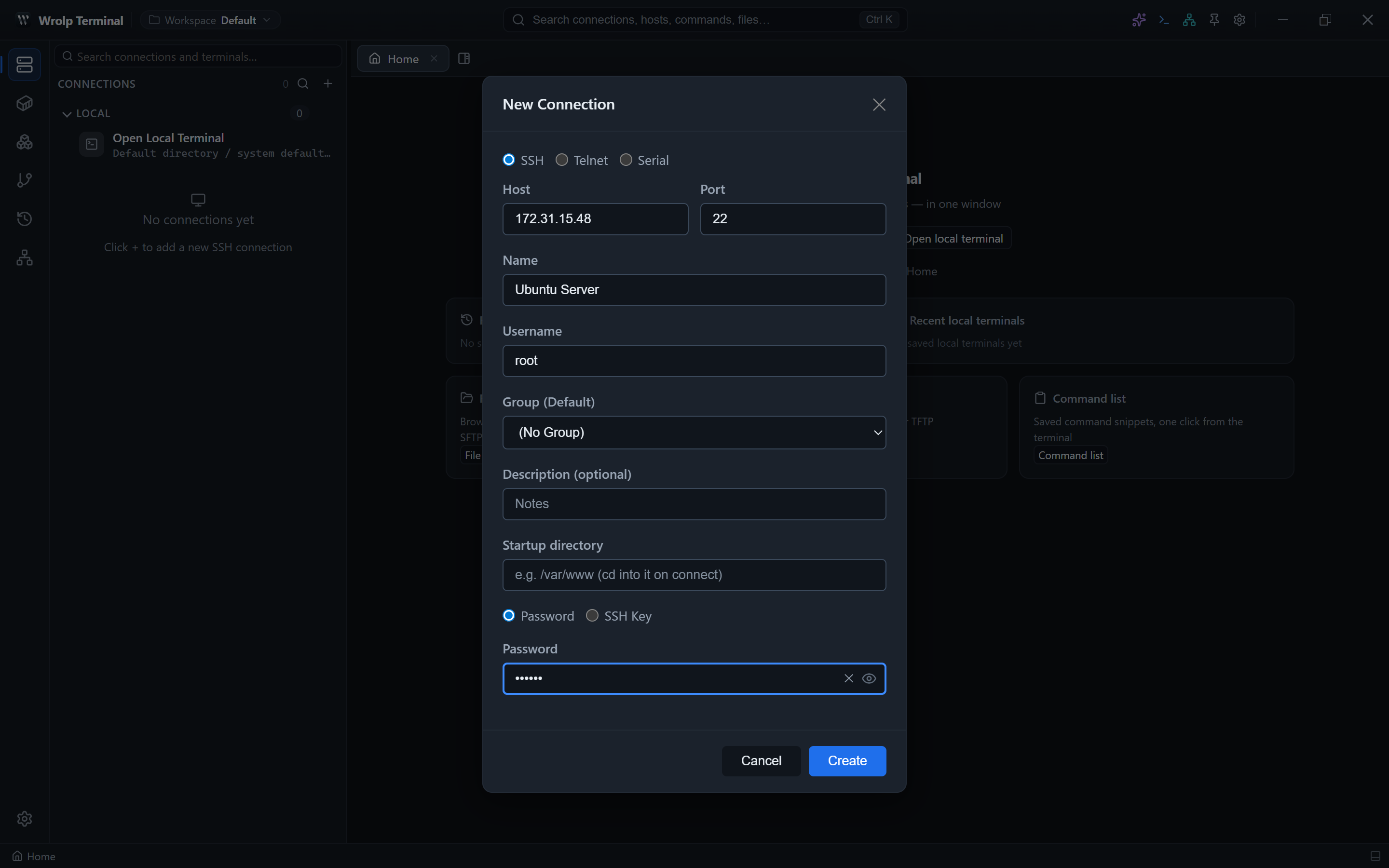
Click + in the sidebar to open the new-connection dialog:
- Name: the label shown in the connection list.
- Host / port / user: the target; the port defaults to 22.
- Authentication: password or private key; a key file can be browsed for and given a passphrase.
- Start directory: optional,
cdinto it after connecting. - Group: pick an existing group or create one; leave empty for “Ungrouped”.
- Note: optional.
A connection is stored in connections.json, which is encrypted and also holds workspaces. The application
opens SSH sessions with password or SSH-key authentication and requests an xterm-256color PTY whose size
follows the window.
Connection settings are also used by the terminal-focused panels: Docker, Kubernetes and Git choose their host from the terminal you have focused (details in chapters 7–9).
SSH sessions
- Transport: implemented in Rust with
russh; no externalsshcommand or OpenSSH binary is required. - Authentication: password or SSH key.
- Terminal: xterm.js rendering,
xterm-256colorPTY, window-size synchronisation. - Keepalive: configurable interval and retry count.
- Reconnect: a reconnect action reuses the same tab instance; a monotonically increasing
session_idkeeps stale background tasks from contaminating the new session.
Connection health
Each tab shows a status dot driven by three backend events:
connection-ok— connected; the dot is green.connection-suspect— keepalive failures suggest a problem; the dot turns yellow.connection-closed— the session ended; the dot turns red.
Use the reconnect action to reuse the tab rather than opening a new one.
Telnet, serial and local sessions
- Telnet: plain TCP with a built-in IAC negotiation state machine (ECHO, SGA, TERMINAL-TYPE, NAWS). Auto-login is optional and off by default because the protocol is plain text.
- Serial (COM): port enumeration with USB device friendly names and VID:PID, plus configurable baud rate, data bits, stop bits, parity and flow control. Baud-rate auto-detection tries each rate and ranks the results by how much the output looks like terminal text.
- Local terminal: the local shell can be opened as a top-level tab or as a split pane beside remote tabs.
Network scan
The Scan network button above the connection list finds open SSH / Telnet services in a range:
- Targets: CIDR (
192.168.1.0/24), a single IP (10.0.0.5) or a last-octet range (192.168.1.10-192.168.1.20). - Ports: comma-separated, e.g.
22,2222. - Group: optional destination group for the results.
- Advanced: timeout in milliseconds and concurrency.
The result table lists open ports only and shows IP, port, detected service (SSH / Telnet / unknown), banner and latency; add rows individually or add them all as connections.